

Core features
Quick Sale: Logging Sales
Quick Sale logs a sale in seconds and keeps your inventory and profit in sync. It's designed to be fast on a phone right after an item sells.
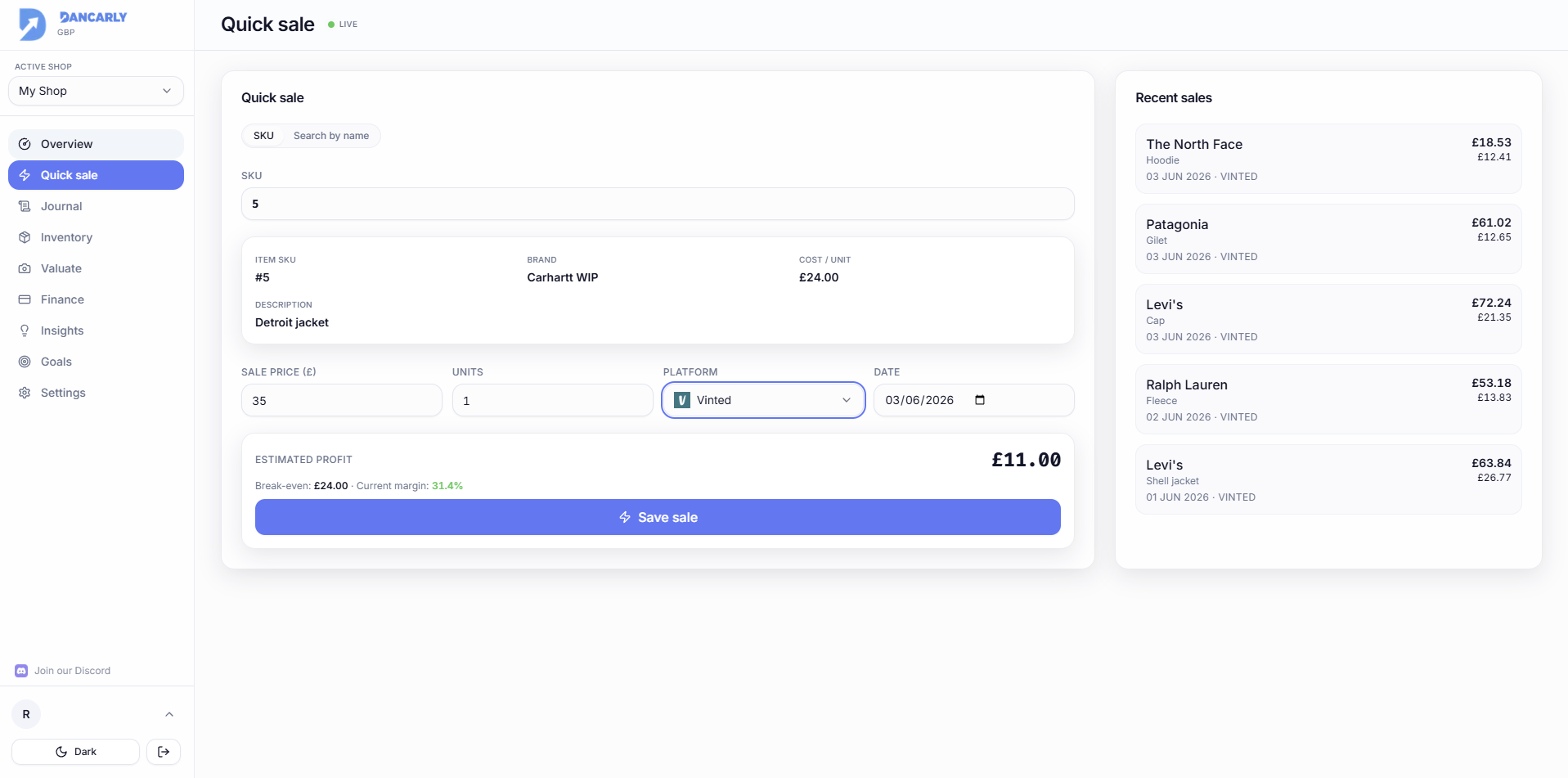
Find the item
- By SKU, type the number (e.g. 12) to jump straight to the matching item or batch.
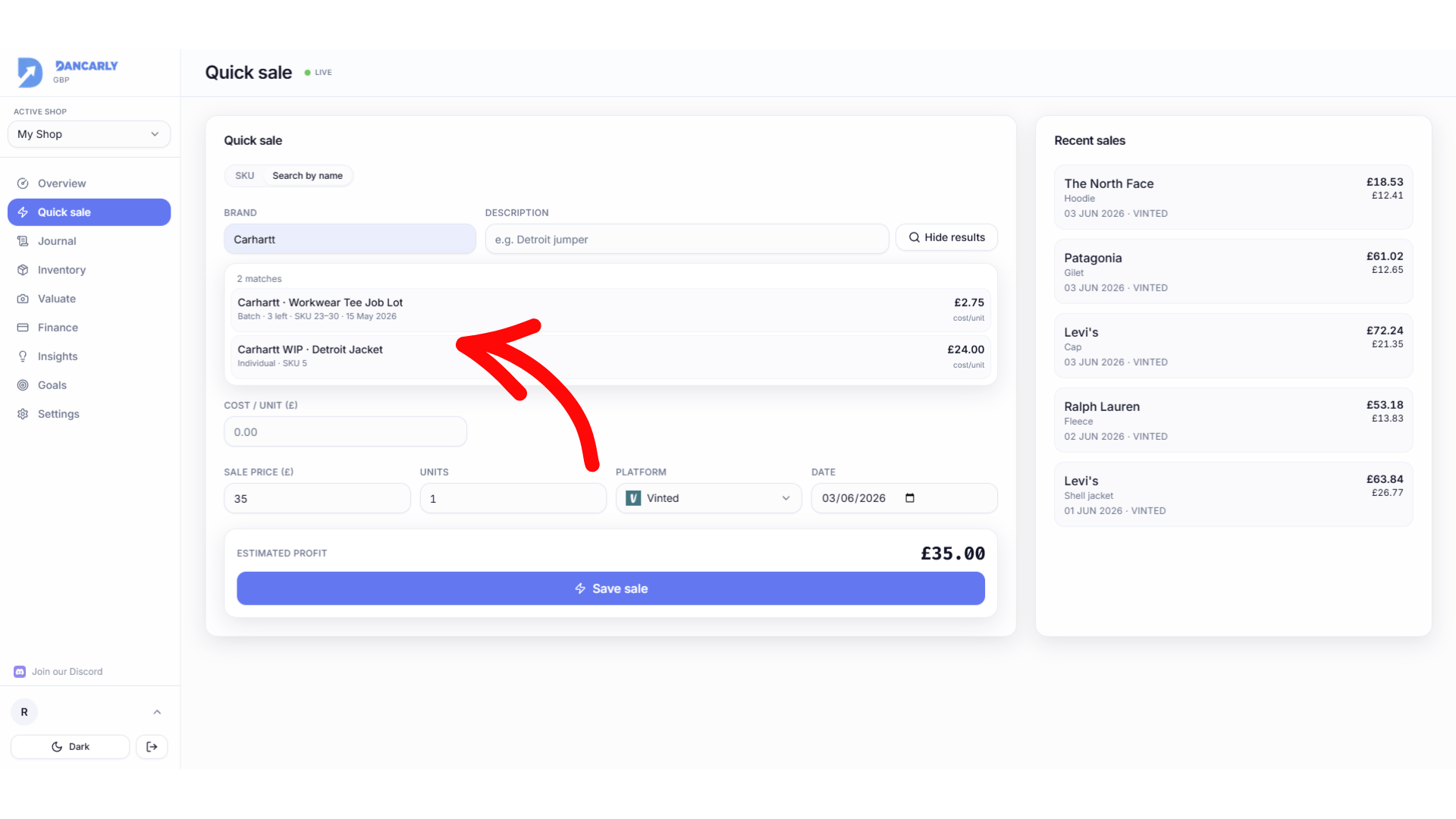
- By name, switch to search and type a brand or description to pick from a list.
Choose the right batch
If a product has more than one batch (say two “Carhartt Jeans” lots bought at different times), each appears as a separate option in the search results showing its date and cost per unit. Pick the lot you actually sold from so the profit is accurate.
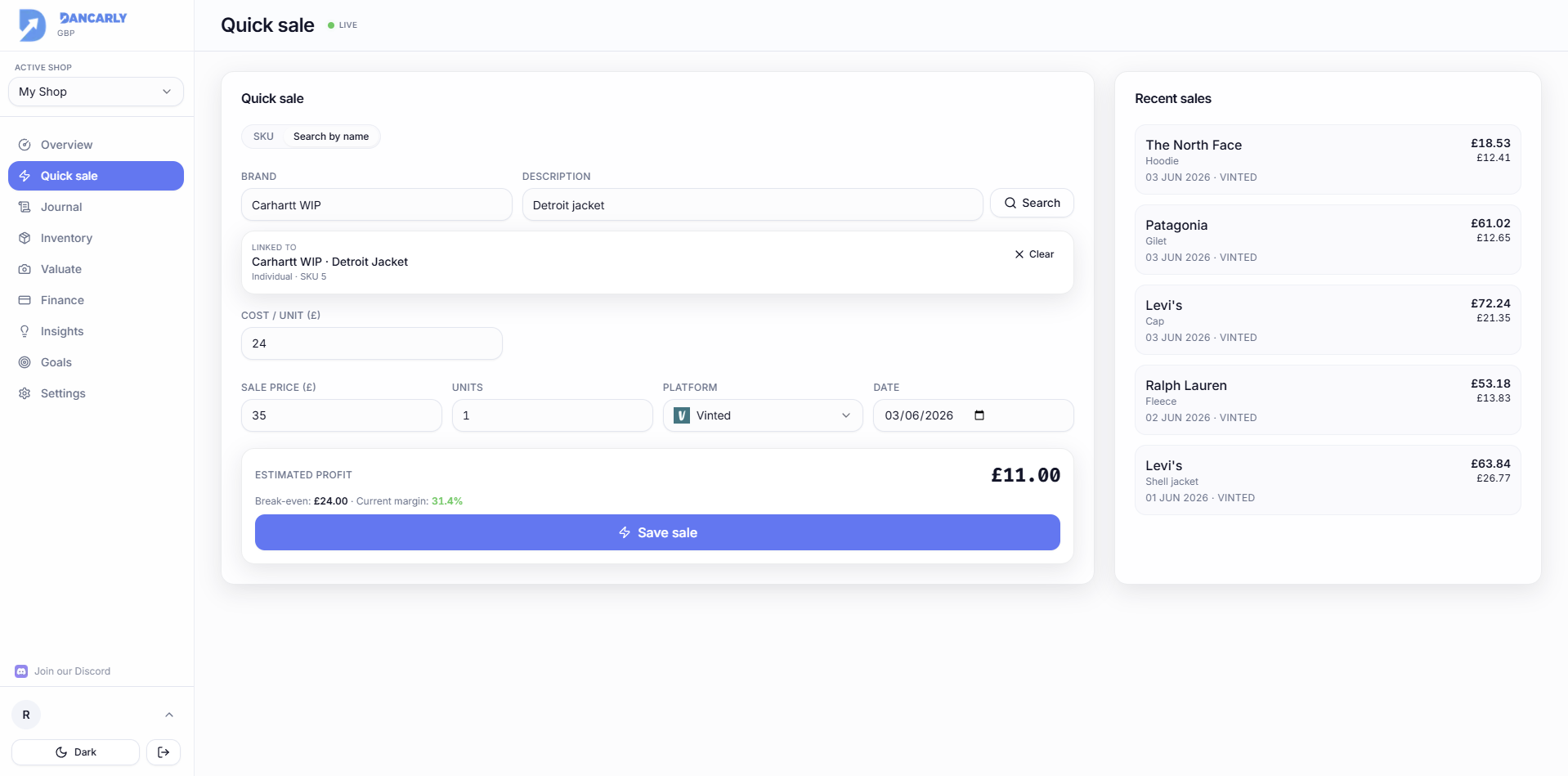
Enter the sale
- 1Type the sale price, this is the price per unit.
- 2Set the number of units (you can clear the field and type a new value; it must be at least 1 to save).
- 3Pick the platform (only the platforms you enabled appear) and the date.
- 4Check the live Estimated profit, then save.
How profit is calculated
Profit scales with units: profit = (sale price − cost per unit) × units, and revenue = sale price × units. So a £15 item with a £13.50 cost sold as 2 units is £3.00 profit at a 10% margin. The saved sale stores the totals, so Overview and Finance match exactly.
Break-even warning
If your price falls below the total cost, Quick Sale flags it before you save so you don't accidentally log a loss.