
Core features
Inventory: Items, Batches & SKUs
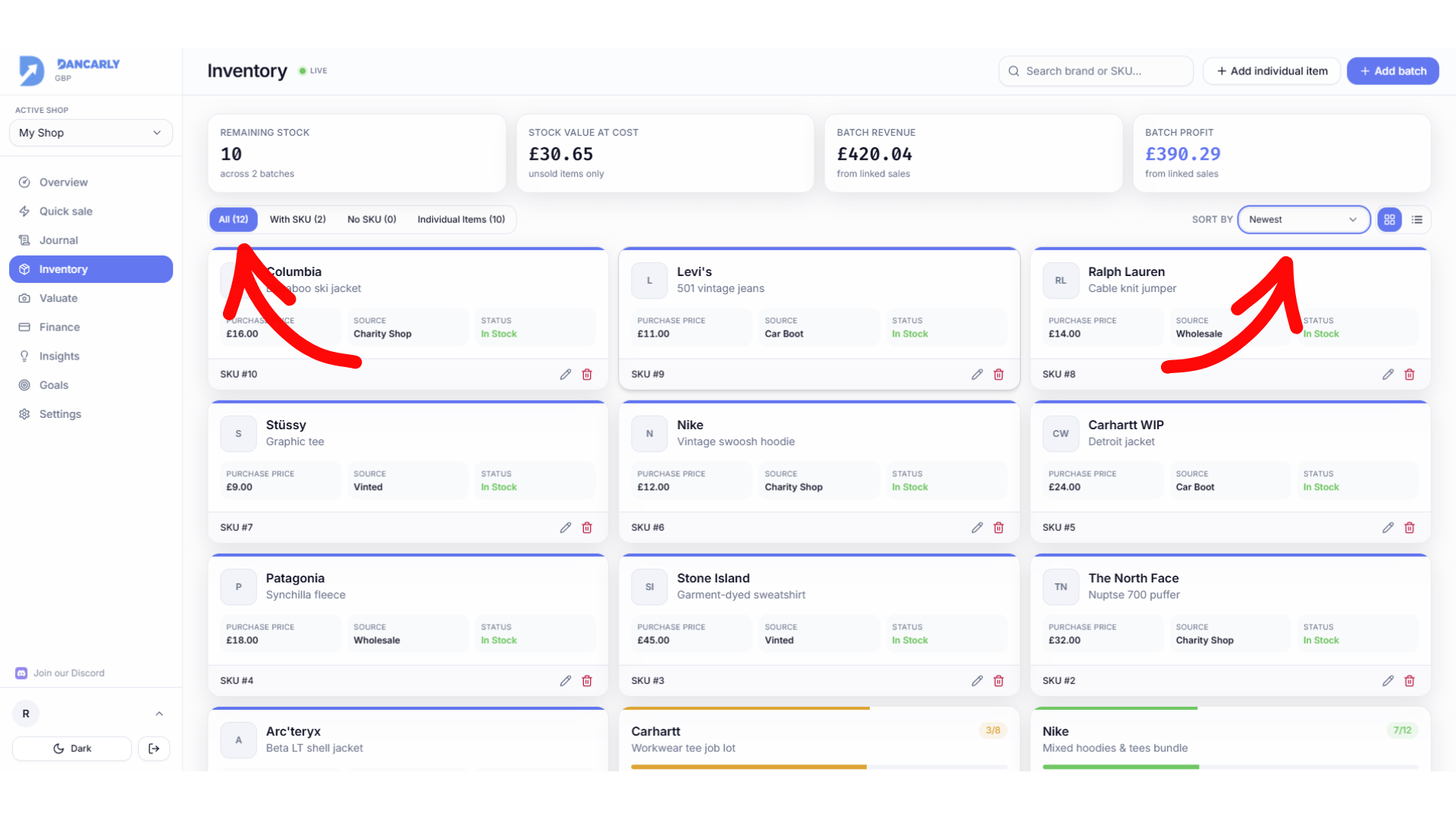
Inventory is where all your stock lives. Track single pieces as individual items, or lots you bought together as batches, each kept as its own entry with its own cost and date.
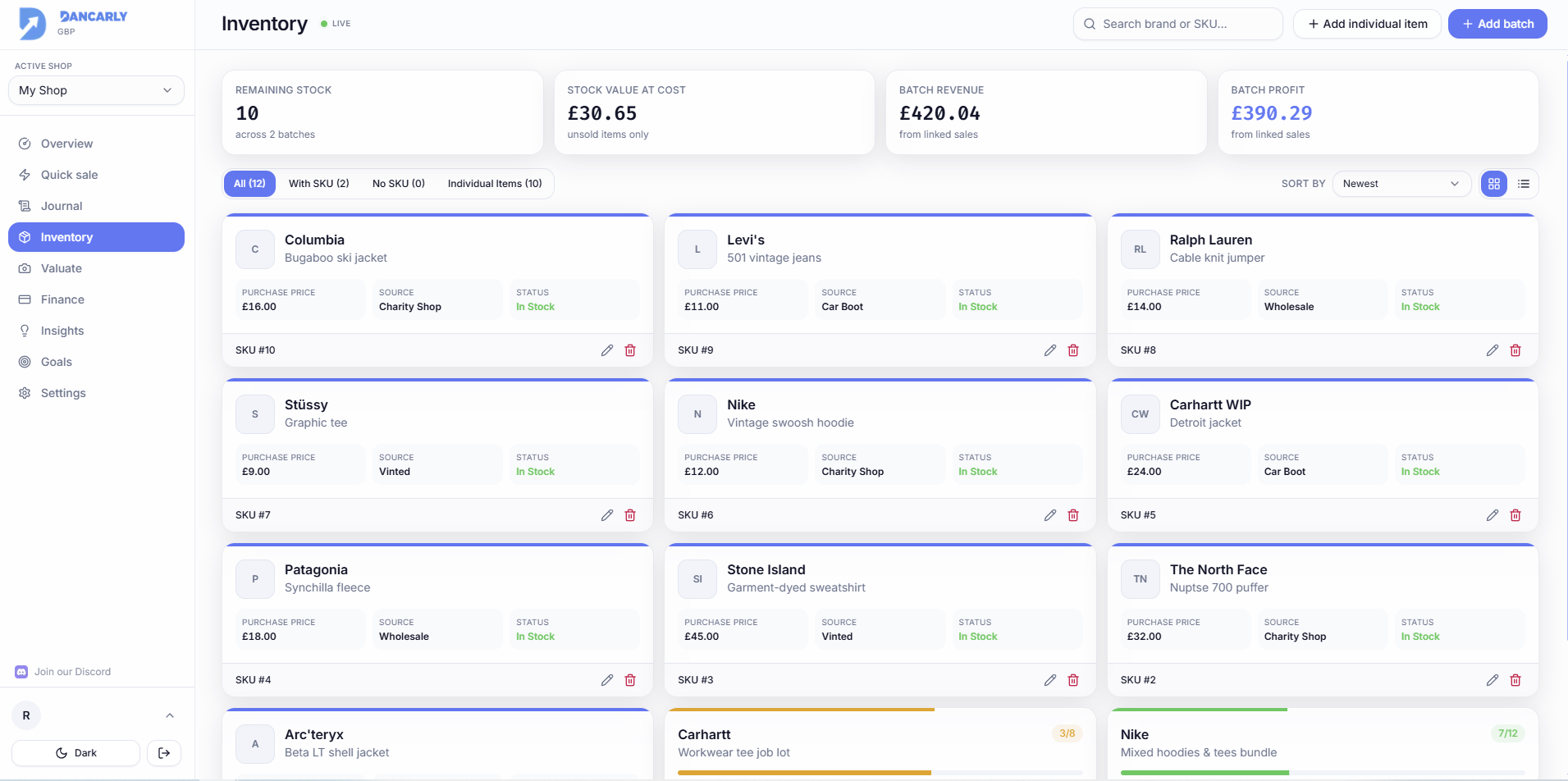
Individual items vs batches
- Individual item, one specific piece (e.g. a single vintage jacket). Best when each item is unique.
- Batch, a quantity bought together at one cost (e.g. 30 mixed hoodies). Tracks how many are left as you sell.
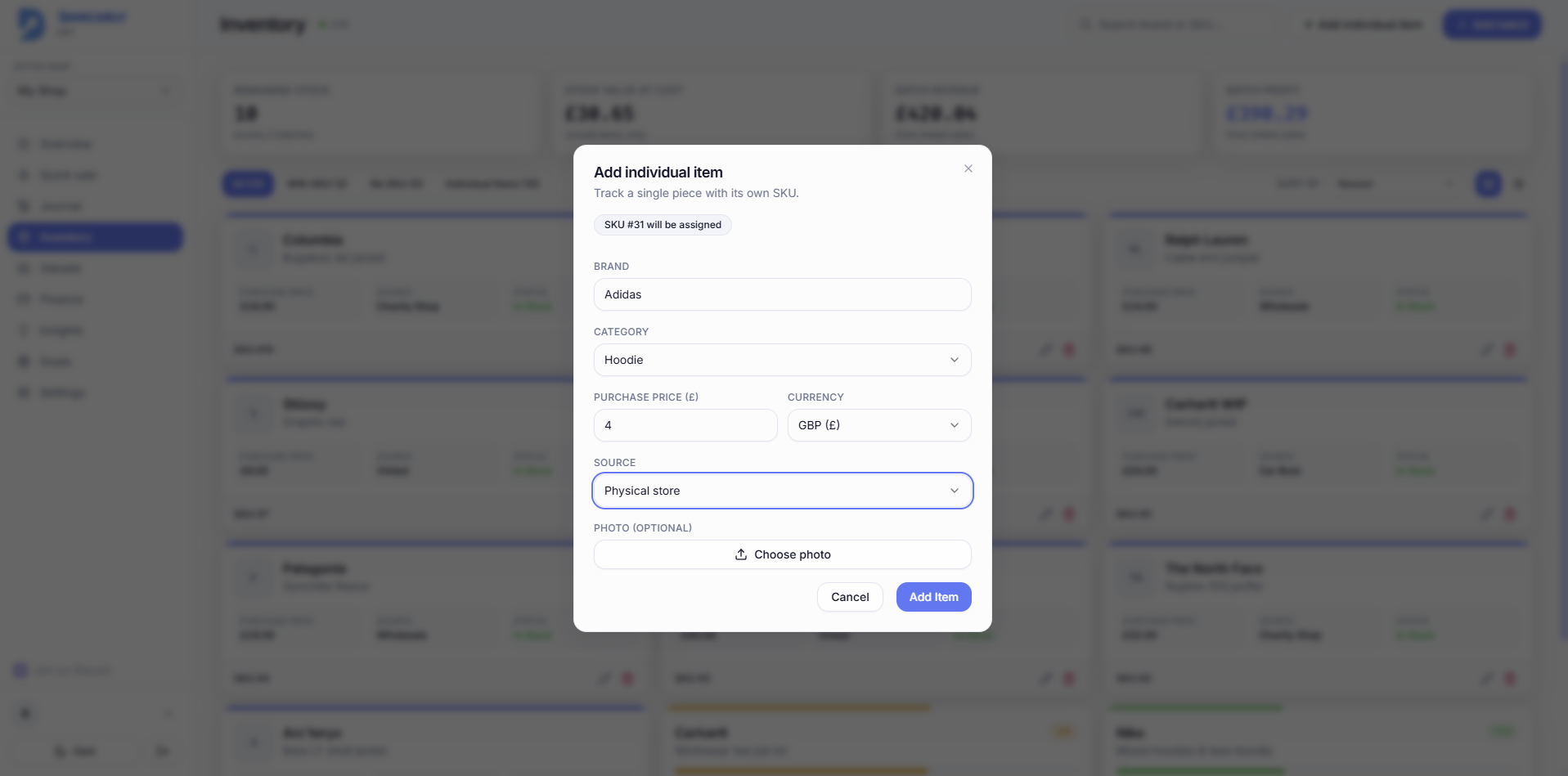
Add an individual item
- 1Click Add individual item.
- 2Enter brand, category, purchase price and where you sourced it.
- 3Optionally add a photo. Save, a SKU is assigned automatically.
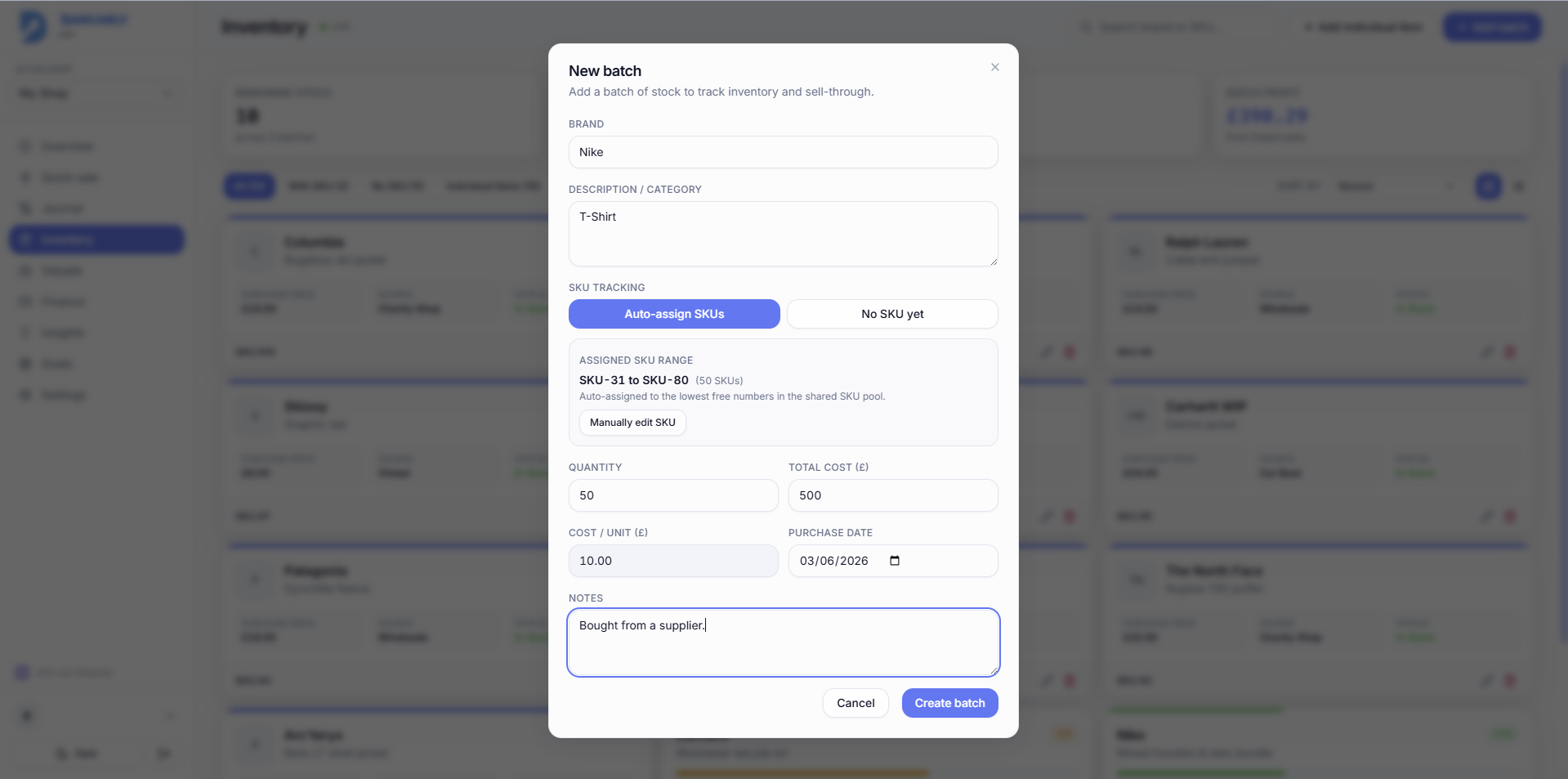
Add a batch
- 1Click Add batch and enter brand, description, total cost and quantity.
- 2Dancarly auto-assigns a consecutive SKU range from the lowest free numbers.
- 3To choose your own start number, click Manually edit SKU and type a start, the range moves with it and must land on free numbers.
The SKU system
SKUs are simple numbers shown as SKU-1, SKU-2, and so on. Batches and individual items share one pool of numbers, so a number is never used twice.
- New stock takes the lowest free consecutive block big enough for the quantity.
- If you disable manual editing, it snaps back to the first free block.
- A range can only rest where every number in it is free, overlaps are blocked.
Tip
Because the pool is shared, you can confidently scan or type any SKU in Quick Sale and it points to exactly one item or batch.
Sorting & filtering
Use the tabs to view All, With SKU, No SKU or Individual items. Sort by Newest or Oldest (by date added) or by stock level. On the All tab, items and batches appear together in one list, each batch showing its added date so you can tell similar lots apart.